
LVDS Configuration
Once the board has booted with the LVDS camera connected, follow the steps below to configure the camera interface.
Warning
This page covers LVDS-only configuration. If you are using both LVDS and MIPI cameras simultaneously, go to LVDS & MIPI Configuration instead.
Get Configuration Folder
Note
Download
lvdsmipi.ko,camconf.koandrc.localfrom the Drivers tab on the AstrOptix Orin Carrier Board product page. Builds will be grouped by board-serial batch — until they're published there, contact Oppila Support forOPPILA_ASTROPTIX_L4T_36.5.0_INTEGRATION.zip.
Step 1: Open Terminal on the Jetson
- Press
Ctrl + Alt + T
Step 2: Extract the Configuration Folder
unzip ~/Downloads/OPPILA_ASTROPTIX_L4T_36.5.0_INTEGRATION.zipConfig folder contains :
Driver Configuration
Step 3: Navigate to Configuration folder
cd ~/OPPILA_ASTROPTIX_L4T_36.5.0_INTEGRATIONStep 4: Grant executable permissions to files
sudo chmod +x config.sh
sudo chmod +x rc.local
Step 5: Execute config.sh script
Execute the following command........................
sudo sh config.shThis script file does the following steps:
- Loads the kernel and configuration module.
- Loads Device Tree.
Configure Device Tree Overlay
Note
This is a one-time configuration required after each new flash. It is not required on every boot.
Step 6: Open Terminal on the Jetson
Press Ctrl + Alt + T
Step 7: Run the Jetson-IO Configuration Tool
sudo /opt/nvidia/jetson-io/jetson-io.pyStep 8: Navigate to Configuration Menu
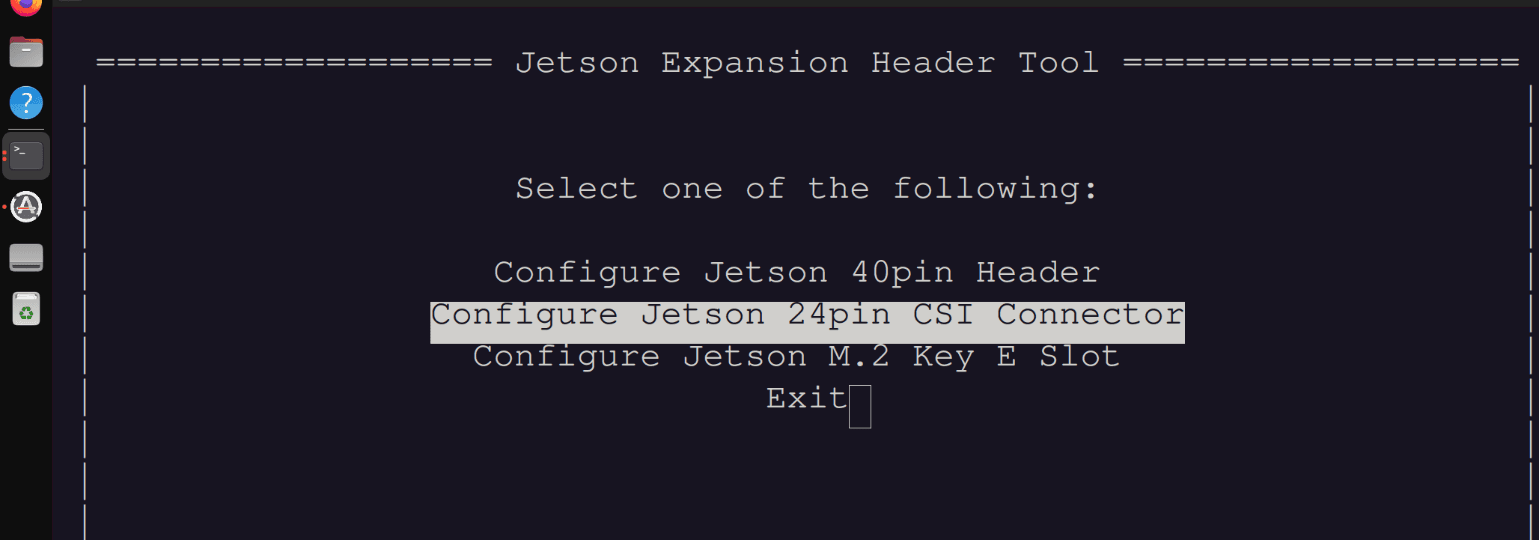
Follow the menu selections in order:
Select "Configure Jetson 24-pin CSI Connector":
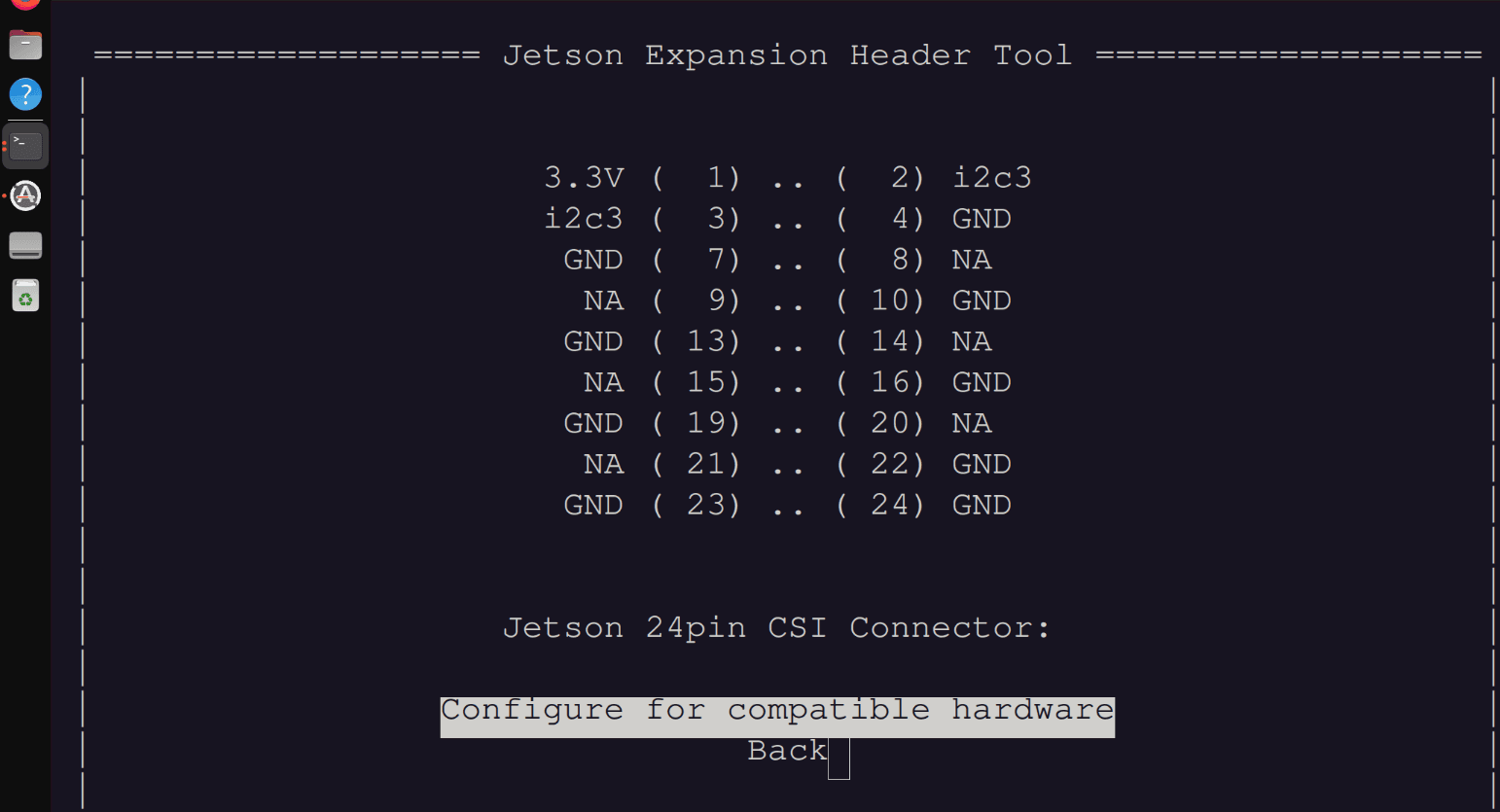
Select "Configure for compatible hardware":
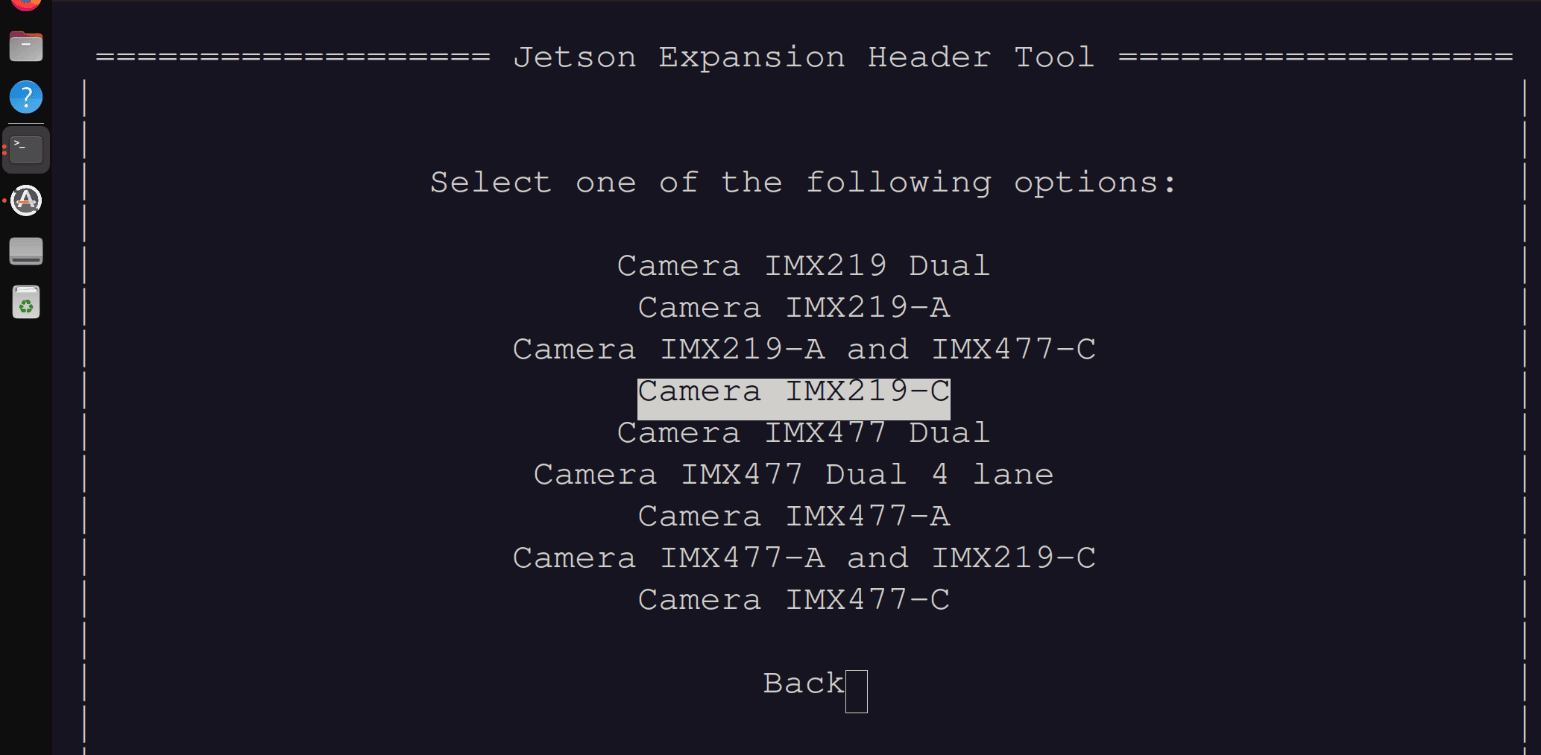
Select "Camera IMX219-C":
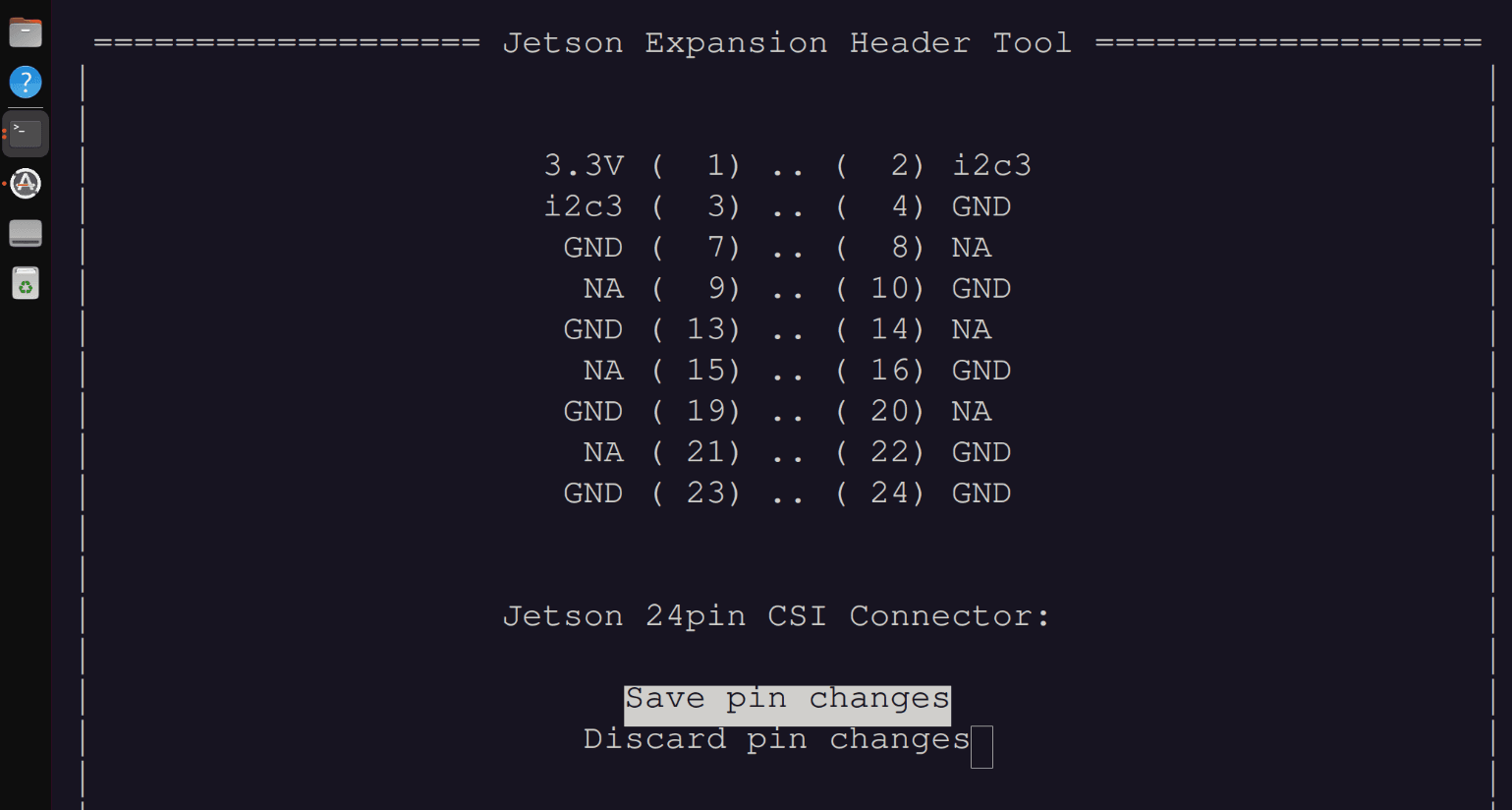
Select "Save pin changes":
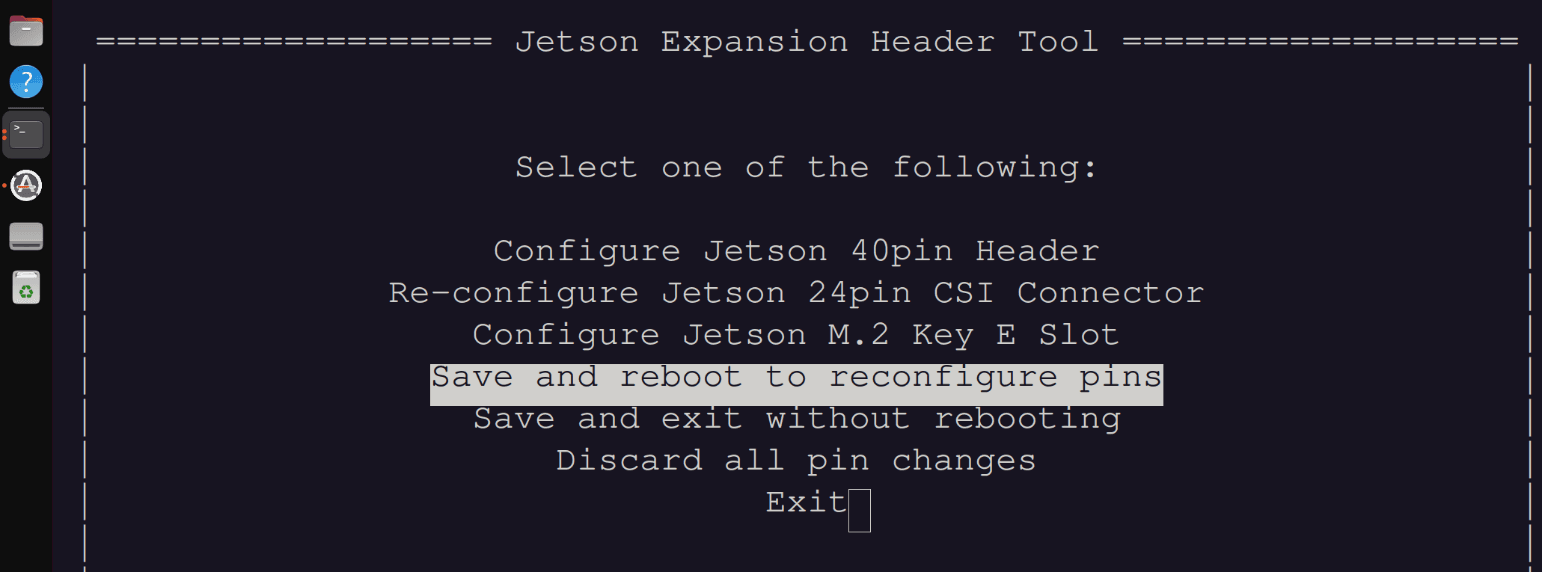
Select "Save and reboot to reconfigure pins":
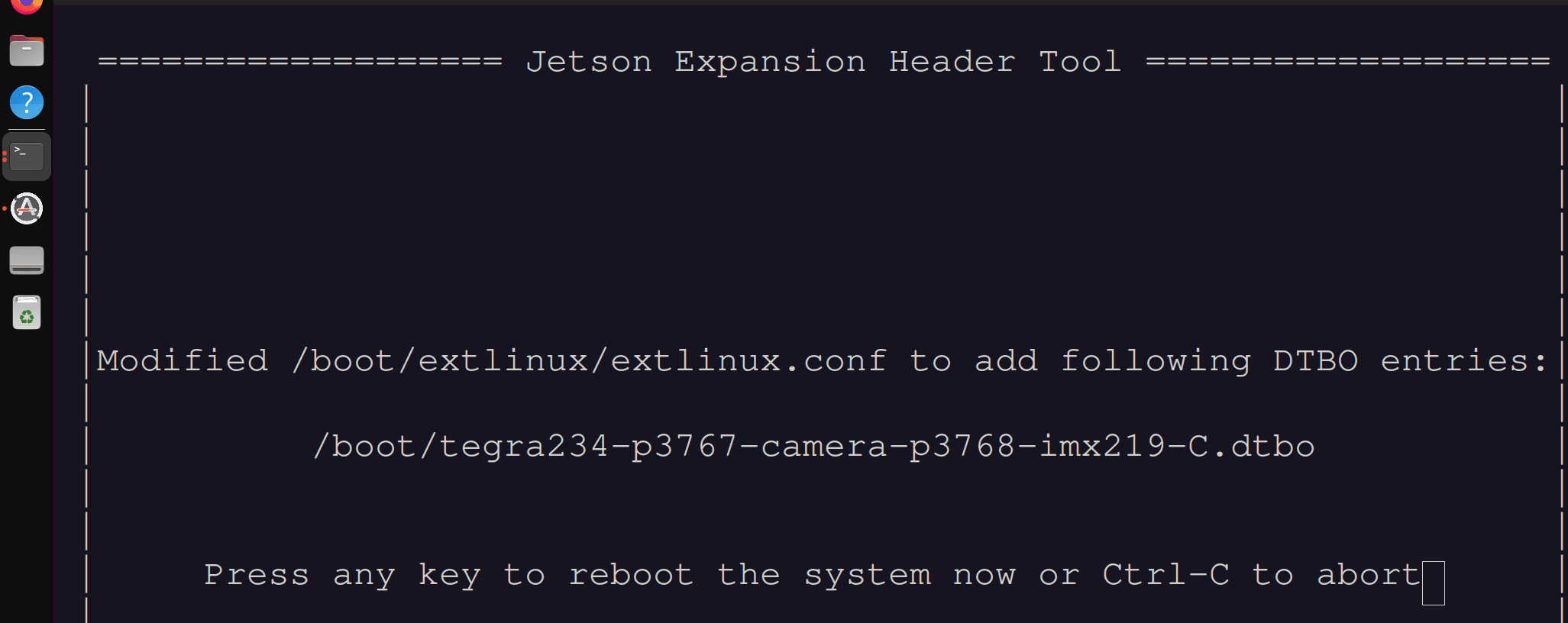
Step 9: Press Any Key to Reboot
The system will reboot and reconfigure the MIPI pins for the LVDS camera.
Info
- The system will shut down and restart. This process typically takes 30-60 seconds.
Once the system restarts, proceed to Camera Power Guide to select and power your camera interface.